Why separation can help
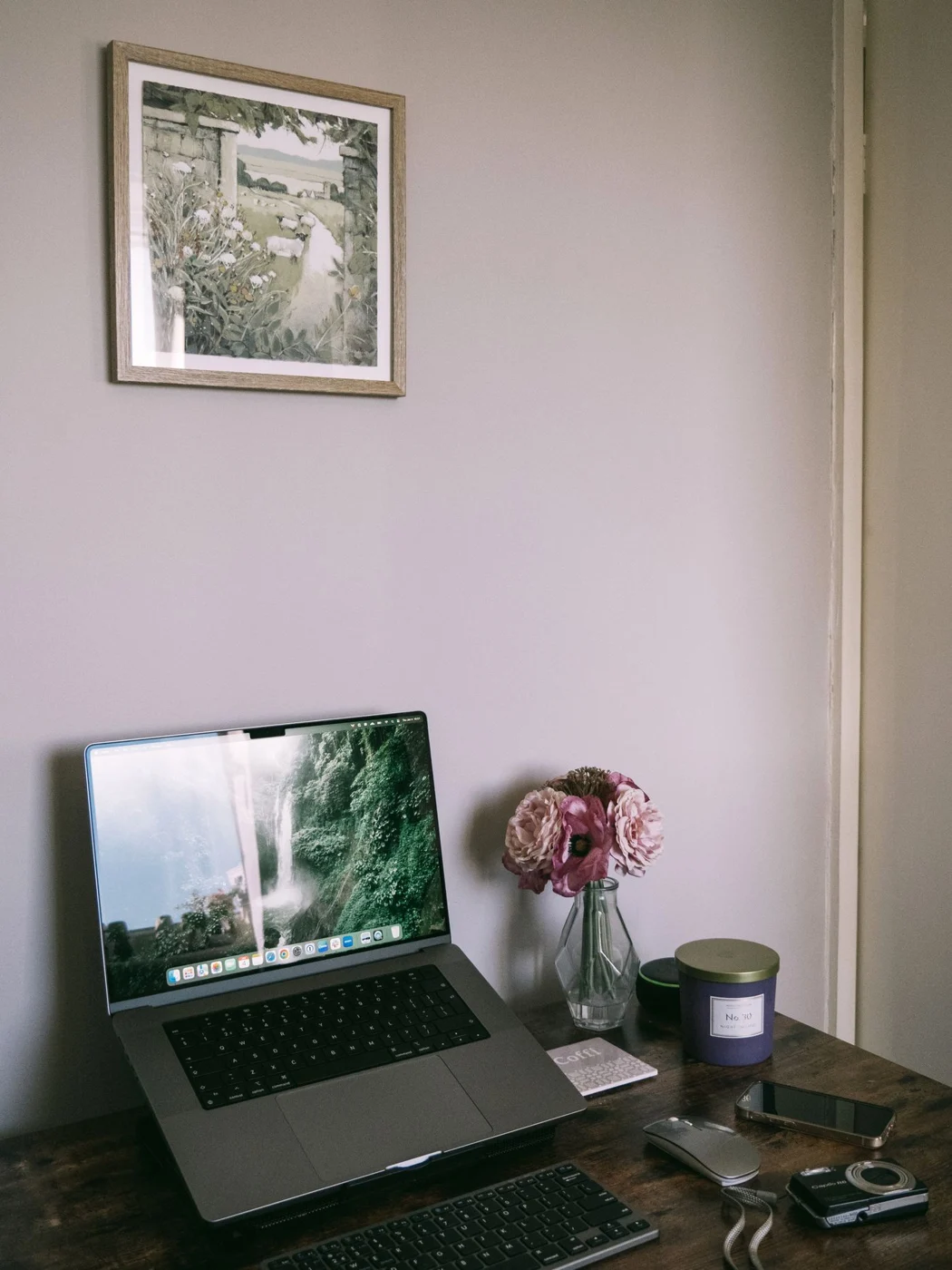
A laptop fixes its screen and keyboard together. Raising the device raises the built-in keyboard too. For repeated longer sessions, a separate keyboard can therefore allow a more useful arrangement: the laptop displays the work while the hands use an independently positioned input device. A suitable pointing device normally belongs with it, avoiding repeated reaches towards an elevated touchpad.
Separation alone does not create a suitable workstation. Table height, seating and available depth still need to work. Do not place the laptop on an arbitrarily tall stack simply to raise the display. A stable stand suited to the device and adjustment for the individual user provide the starting point.
Separate travelling and fixed arrangements
A laptop is often chosen for mobility. A fixed keyboard and stand need not remove that advantage. Give the parts staying on the desk permanent places and decide which cables travel. A second suitable connection at another frequently used location may simplify the move where it is compatible with the device.
When packing away, check whether the laptop should close before removal from the stand. Follow the intended handling and avoid pulling on the display. With a close-fitting support, clear space in front helps both hands reach the device securely.
Brief mobile tasks can remain separate from the complete desk arrangement used for longer work. Not every small task then needs the same setup. Recognise the limits of each situation and avoid allowing a convenient temporary arrangement to permanently replace the place suited to the longer activity.
Lay out the complete setup
Place the keyboard and mouse where they can be reached comfortably first. Position the laptop behind them and check the display. If necessary, enlarge content through the available settings instead of continually pushing the device closer to the keyboard. The screen needs to remain readable without taking over the hands' working area.
Check the laptop's ventilation openings and the manufacturer's instructions. A soft pad or fabric-covered stack is not a suitable improvised support where it blocks airflow. Test stability while using the separate keyboard and while connecting a lead. The stand should not shift each time a cable is inserted or an adjustment is made.
Include connections and travel
A wired keyboard needs a suitable port, while a wireless model needs a compatible connection and power supply. Test the connection before an important session. If an adapter is used, give it a position where its leads do not pull on the computer. The adapter is part of the layout, not an object to leave hanging from a socket.
If the laptop travels frequently, rehearse the complete setup and removal. Can power and accessories be disconnected without reaching behind a shelf? Does the keyboard remain neatly stored while the computer is away? Small cable labels can help where several similar plugs are present, although labels do not replace checking compatibility.
Preserve the working area
Keep drinks outside the device and cable area. Place documents to the side where they can be consulted without continually shifting the keyboard. A stand with extra storage helps only if that storage does not occupy the space needed for hands or paper. Added features are useful when they support the actual task.
Recheck the arrangement after several working days. A book may have moved the screen, or a paper stack may have taken the mouse's place. Deliberately preserve the clear layout that worked. The accessories should make the computer easier to use rather than create another permanently crowded surface.